
How to create a WinMTR report
Download WinMTR from SourceForge to investigate lag or packet loss on Windows. This free tool combines ping and traceroute, reporting loss and latency at each hop between your computer and the server. Send the capture to our team so we can compare the hops along that route.
Create the report
Section titled “Create the report”- Install the WinMTR download on your computer.
- Launch WinMTR.
- Enter the server’s IP address or hostname in Host.
- Click Start to run the trace.
- Keep the trace running for at least 5 minutes or until you have 100 samples.
- Choose Copy Text to clipboard once the test finishes.
- Save the copied results in a text file and send that file to our team.
For a complete report, use the correct IP address or hostname and make sure the server is online with ICMP enabled.
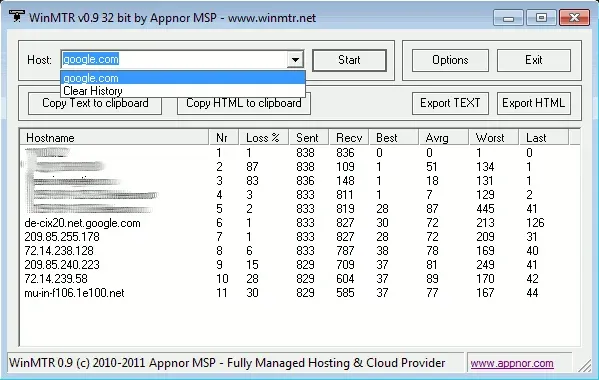 Copy the results after the WinMTR trace completes.
Compare Amsterdam and Chicago for DayZ
Section titled “Compare Amsterdam and Chicago for DayZ”Test from the connections your regular players will use. One computer’s report describes its route at that time, so collect reports from players in the regions your community serves.
- Ask VYKIX for the assigned game address or an available test endpoint in each city. Confirm which location each endpoint represents. Website and mitigation-network endpoints can follow different routes from a managed DayZ server, so use the game or test address we confirm.
- Ask players in the regions your community serves to capture a report to each endpoint near your usual session time. Keep the date, time zone, city, player region, ISP and sample count with each report.
- Compare the destination’s average and worst round-trip time and whether reported loss reaches the destination. If an intermediate hop is slow or silent, check the destination before treating it as gameplay loss. That router may simply limit its diagnostic replies.
- When a game test is available, join each city using the same DayZ build, map and client mods. Check login, movement, inventory actions and reconnects. Record server FPS and player count so server load is not mistaken for a route difference.
- Choose the city that works for your regular group. If results conflict, send both reports and the session notes to VYKIX before committing to a longer billing term.
| Record | Why it matters |
|---|---|
| Endpoint and confirmed city | Shows which managed location was tested. |
| Player region, ISP and time zone | Identifies whose connection the result describes. |
| Test time and sample count | Lets support compare measurements taken under similar conditions. |
| Destination latency and reported loss | Describes the diagnostic response from that endpoint. |
| Build, map, mods, server FPS and player count | Separates route symptoms from differences in the game workload. |
| Join and reconnect result | Records whether the game connection worked during the test. |
An endpoint can restrict ICMP while accepting DayZ connections. If the destination does not answer the trace, ask support how to test it rather than assuming the game is unreachable. Check gameplay separately from the server-browser A2S response too, because that response may come from a cache.
Compare Amsterdam hosting for European communities and Chicago hosting for US communities. Both pages offer the managed DayZ PC plan. Check each city’s connection with your group before deciding.
A sample from VYKIX HQ in Portugal
Section titled “A sample from VYKIX HQ in Portugal”On 3 October 2026 at 10:41 UTC, we sent ten ICMP echo probes to each VYKIX test address from the HQ connection in Portugal. Chicago was tested first, then Amsterdam. Each probe had a 1,200 ms timeout, with a 500 ms pause between probes. The source location was supplied by VYKIX; the ISP was not recorded.
| Test address | Replies | Average | Best | Worst |
|---|---|---|---|---|
Chicago, 172.111.51.1 |
10 of 10 | 128.5 ms | 125 ms | 133 ms |
Amsterdam, 193.25.252.1 |
10 of 10 | 42.8 ms | 40 ms | 45 ms |
Amsterdam had the shorter round trip from this connection during the sample. Repeat the comparison from your players’ networks. The sample used diagnostic addresses and ICMP replies, so check your assigned DayZ instance separately for its route and gameplay latency. These ten replies won’t tell you how much packet loss occurs under load.
Download every sample and its method. Use the assigned game address and port for the separate join and reconnect checks above.
For the diagnostic workflow and examples of router response limits, see Cloudflare’s MTR troubleshooting guidance. That reference explains the tool; it is not a measurement of VYKIX’s DayZ locations.