
Mods and Workshop installs
Three areas make up the Mods page:
- Installed mods manages mod bindings, which tell the server what to load. It also controls their scope, dependencies and loading order.
- Workshop catalog searches cached Steam Workshop entries and tracks installations.
- Advanced local binding links a mod folder already present on the server.
Your service can assign different permissions to mod management and Workshop installation.
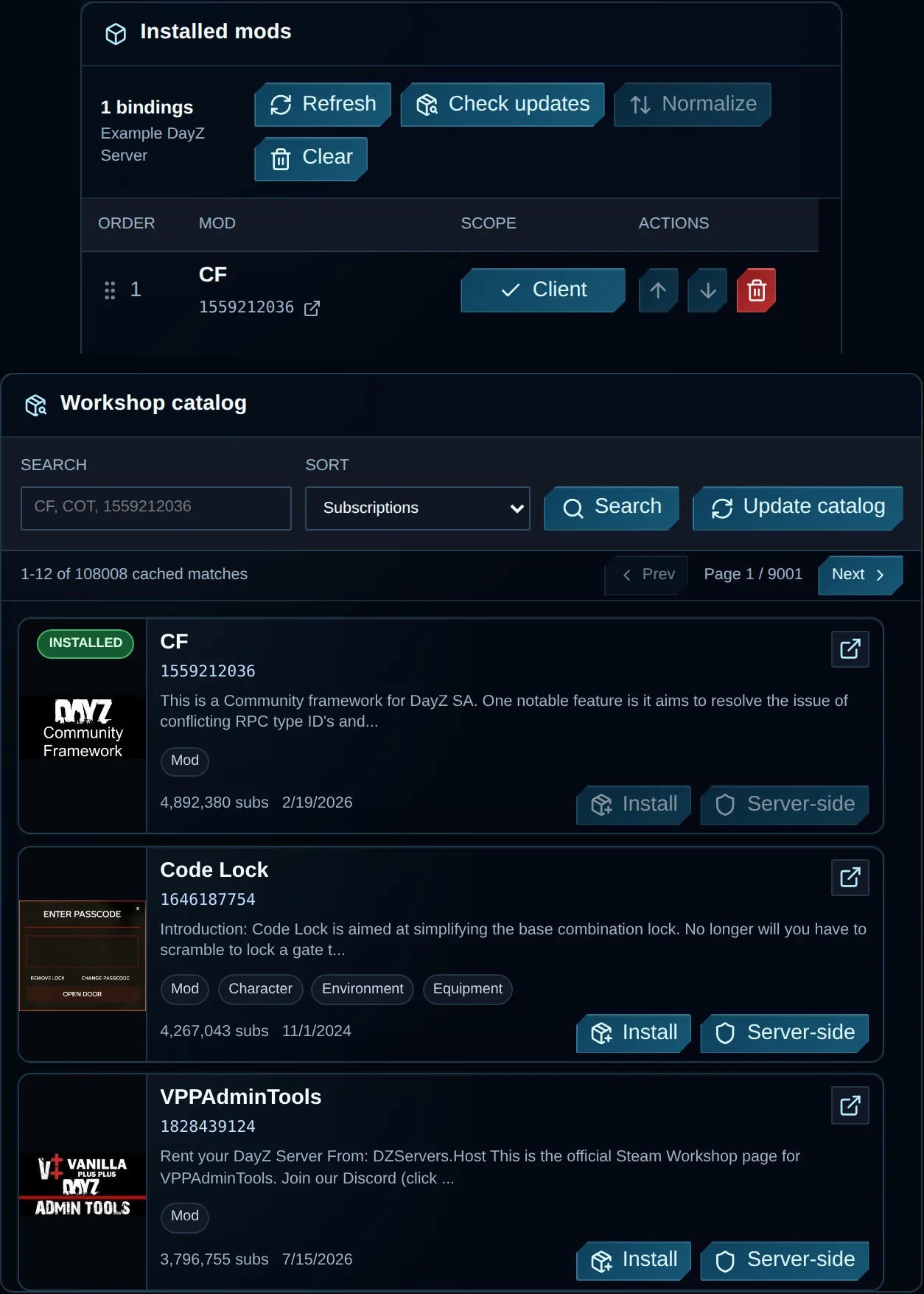
Installed bindings sit alongside Workshop results so you can review load order and scope before a restart.
Install from the Workshop catalog
Section titled “Install from the Workshop catalog”- Enter a mod title or numeric Workshop ID in search.
- Follow the Steam Workshop link and check that it is the DayZ item you intend to install.
- Choose Install for a client mod. Use Server-side only if the publisher states that clients do not require it.
- Read any required-mod list and decide whether to install those dependencies first.
- Leave the page open to follow download progress.
- Check that the result appears in Installed mods.
- Check its load order and restart during scheduled maintenance.
Your server runs one installation at a time; the host also caps concurrent installations. Returning to the page during an active job restores its progress display.
Workshop search controls
Section titled “Workshop search controls”| Control | Meaning |
|---|---|
| Search | Looks up a Workshop ID or matching cached title. |
| Recently updated | Orders results by their most recent Steam update. |
| Subscriptions | Orders items using their Steam subscription totals. |
| Score | Orders entries by the catalog’s relevance/score. |
| Title | Lists items in alphabetical order. |
| Update catalog | Requests changes from Steam for the cache, then reruns the search. Installed server files are unchanged. |
| Prev / Next | Opens another page of cached search results. |
An empty result set may mean the cache has not yet been populated. Update catalog can take time or encounter Steam limits. Wait rather than submitting repeat requests.
Client versus server-side scope
Section titled “Client versus server-side scope”| Scope | Meaning |
|---|---|
| Client | Includes the mod in the client-visible loading list. Players usually need the matching Workshop content. |
| Server | Loads the package on the server side. Use this when the author supports server-only loading. |
Pressing an installed row’s scope button changes its binding at once. An incorrect scope can block joins or put a server-only package into the client list. Restart after editing scope.
Check the publisher’s instructions before choosing Server-side. The button is available even for items that need client files. CF and VPPAdminTools belong in the client mod list and also need matching server packages. Follow the mod installation guide and VPP setup for their dependencies and order.
Required mods
Section titled “Required mods”Publishers supply Workshop dependency metadata. If the catalog identifies missing direct requirements, the panel offers:
- Install all required mods: the recommended option installs each missing dependency before the selected item, using the same client/server scope.
- Install without requirements: leaves dependency management with you, but missing items may prevent the mod from loading.
Installed bindings may also offer Install required. Read the publisher’s setup instructions because the dependency metadata may omit requirements.
Check each dependency’s required scope and order even when using the automatic option. Some dependencies may need a different scope from the selected item; follow their authors’ instructions before restarting.
Load order
Section titled “Load order”Mods load in the displayed order, starting with the top installed row.
- Move a row by dragging it or using the up/down buttons.
- Use Normalize to place known DayZ dependencies in their expected relative order, retaining other ordering where possible.
- Apply the new order by restarting the server.
Use Normalize as a starting point and follow the publisher’s required order where it differs. For a documented relationship between two mods, make changes to one group at a time.
Check for updates
Section titled “Check for updates”Check updates compares the host’s copied timestamp for each installed Workshop item against its latest cached Steam timestamp. The result is one of:
| Result | Meaning |
|---|---|
| Current | Within the comparison tolerance, the host copy is as recent as or newer than the cached Steam item. |
| Update available | The Steam publication timestamp is newer than the host copy. |
| Installed unknown | No usable installed timestamp came from the host. |
| Latest unknown | No usable Steam timestamp came from the catalog. |
| Local | This binding has no associated Workshop ID. |
This comparison leaves files unchanged. Before using a restart to update mods, verify Restore mods on startup in Advanced settings or ask support for your service’s update workflow. After updating and refreshing the catalog, run the check again.
Add an advanced local binding
Section titled “Add an advanced local binding”Choose Advanced local binding when the mod files already exist at a server path and you know their required loading method.
| Field | Meaning |
|---|---|
| Mod name | The binding’s display and load name, often starting with @. |
| Mod path | An existing folder relative to the server root, for example @MyLocalMod. |
| Server-side | Selects server scope rather than client scope for the binding. |
Transfer files through Files and SFTP before adding the binding and restarting. The binding tells the server where to load them; it does not upload or validate them.
Do not add a local binding for a Workshop package already listed in Installed mods. That can load the same package twice.
Remove or clear bindings
Section titled “Remove or clear bindings”Stop the server and wait until it is offline before removing mods or clearing bindings. Confirm each action’s file effects for your service:
- For a numeric Workshop binding such as
@1559212036, check whether removal also uninstalls and deletes the package folder. - For a local/custom binding, check whether the folder remains after its loading entry is removed.
- Before using Clear, confirm which bindings and files it affects. Do not use a bulk action to remove one item.
Check each confirmation to see whether that action deletes files.
Troubleshooting
Section titled “Troubleshooting”| Problem | Check |
|---|---|
| Install stops or times out | Let the job settle, refresh once and review its resumed status before starting another installation. |
| Mod is installed but not active | Check scope, order, dependencies and publisher instructions, then restart the server. |
| Players get a signature or missing-mod error | Use Client scope for all client-required mods and verify matching server/client versions. |
| Update remains available after restart | Refresh the catalog, allow for Steam publishing delay and repeat the check. |
| Local binding fails | Check the folder path and required key/config files in File Manager. |