
VYKIX Architect+ Panel guide
Use VYKIX Architect+ Panel to operate the server and inspect its health. The same panel manages files, mods, maintenance schedules, backups and DayZ configuration.
DayZ Architect+ includes both VXPanel and CFTools Architect. The instructions and screenshots here cover VYKIX’s panel. CFTools Architect uses a separate interface.
These guides cover customer controls. Your service and access policy determine what is available; excluded controls may be hidden, read-only or disabled. Ask VYKIX on Discord if you cannot access a control you need.
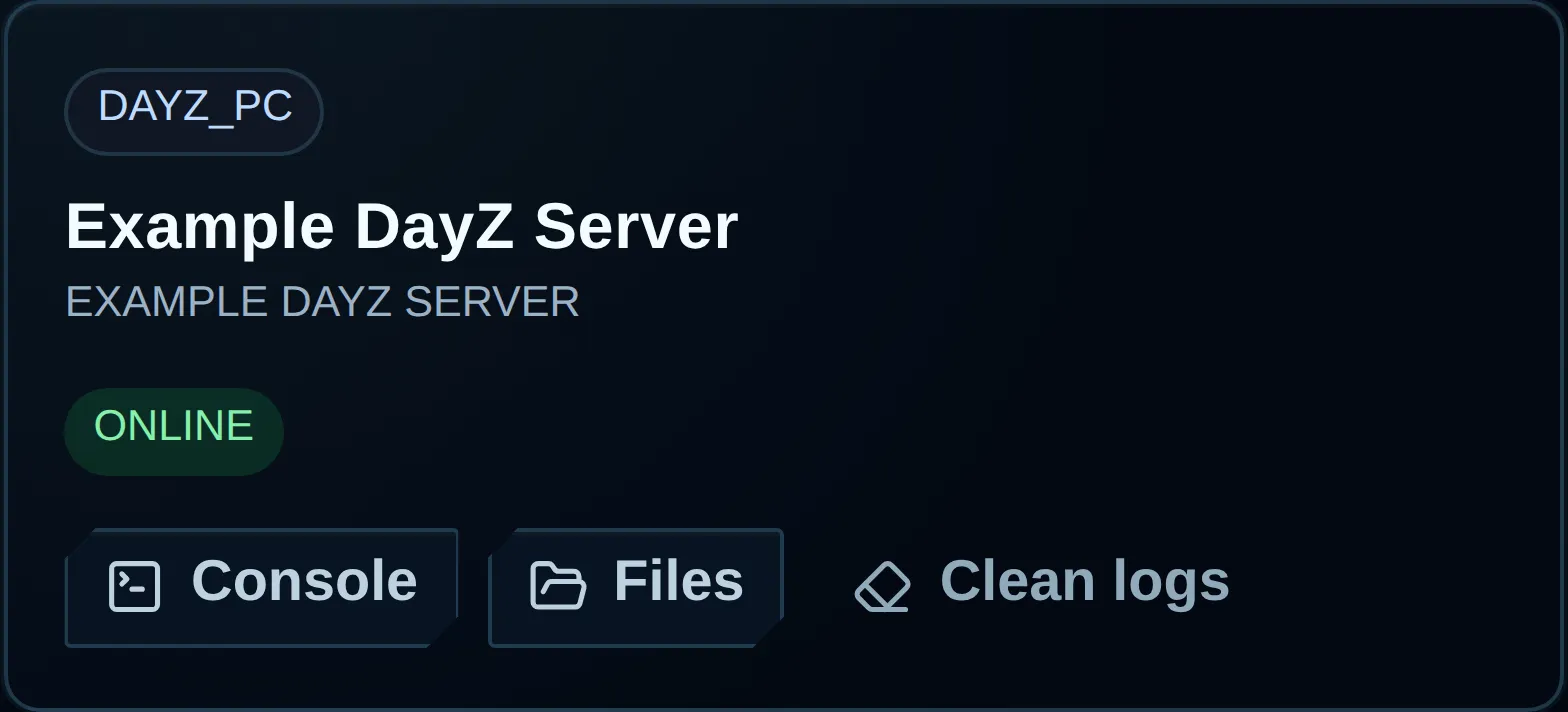
Choose an entry in Assigned servers and open it or use its shortcuts to access available tools. Screenshots use example identifiers.
Sign in and select a server
Section titled “Sign in and select a server”- Follow the VYKIX Architect+ Panel link from this guide, your client portal or the service email.
- Sign in with the VYKIX account that purchased the service, or your own user account with subuser access.
- Choose Servers from the navigation.
- On the intended server, open Console or Files.
Assigned servers contains the services linked to the signed-in account. Wait for a new service showing Provisioning to finish deployment, then refresh. If a service is missing or incorrect, check the account you used and, for a subuser, confirm the owner has granted Perform Single Sign-On.
To give another person panel access with their own login, follow Add a subuser. The account owner grants access through User Management in the client portal.
Open a service from the client portal
Section titled “Open a service from the client portal”If a service page includes a panel button, it opens that service after sign-in. The panel finds the linked server and displays Details, from which you can open Console or another tool.
For an unavailable-service or access message, confirm you used the purchasing account or an invited user with Perform Single Sign-On. After a permission change, sign out of the panel and sign in again. Return to Servers and refresh. Contact support if the active service still does not appear.
Understand server states
Section titled “Understand server states”| State | What it means | What to do |
|---|---|---|
Online |
The game process is running. | Players can join. Plan maintenance before stopping or restarting it. |
Offline |
The game process is stopped. | Choose Start when ready to run the service. |
Starting |
A start request is in progress. | Let it finish without repeating the action. |
Stopping |
A stop request is in progress. | Wait for completion before starting or restarting. |
Unknown |
The current state has not been confirmed. | Use Check status in Console. |
Error |
The last action or status check failed. | Read its message and logs, address the cause and then retry. |
Provisioning |
The host is creating the ordered service. | Wait, then refresh. Customer controls become available after creation. |
Suspended |
Service access has been paused. | Review the client portal or ask support. |
Terminating / Terminated |
Cancellation is underway or finished. | Contact support at once if this is unexpected. |
The header displays the last state known to the panel. Request a new state from the host with Check status. Refresh dashboard reloads assigned services and their stored states.
Find a panel area
Section titled “Find a panel area”Navigation and shared controls
Section titled “Navigation and shared controls”The tools appear in this order after opening a server:
- Console: server state and power, RCON, live output and performance.
- Logs: the newest supported DayZ profile log files.
- File Manager: files in the browser, with temporary client access on its SFTP tab.
- Configuration: common game settings, with Agent options in its Advanced tab.
- Mods: Workshop browsing and installed mod bindings.
- Backups: create recovery copies and restore them.
- Schedules: set up recurring restarts and storage wipes.
- Webhooks: configure Discord lifecycle notices and their messages.
- Network: view your assigned IP and ports.
- Details: inspect service and lifecycle information without editing.
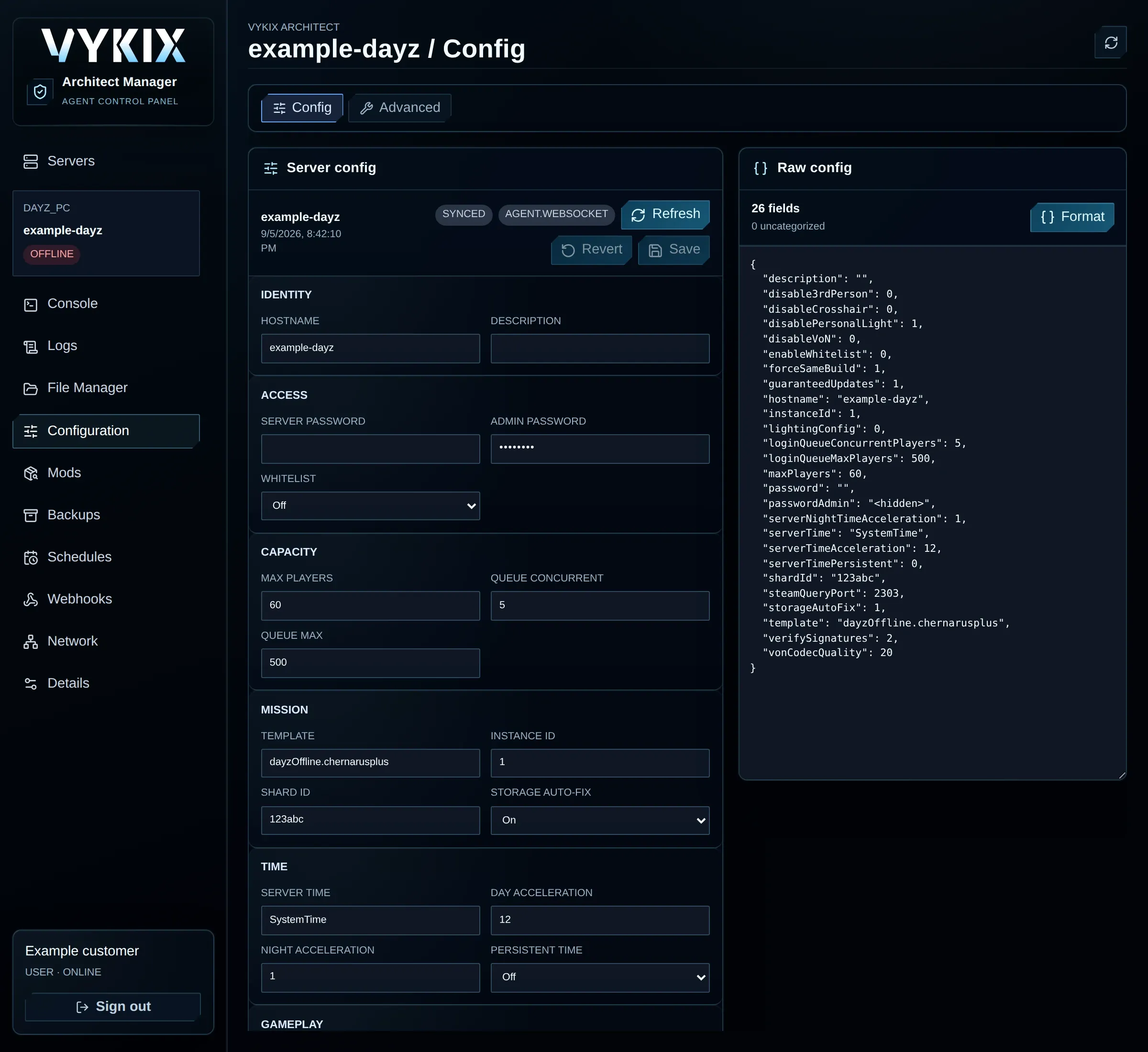
Open Configuration in the main navigation to reach the Config and Advanced tabs. Webhooks contains Discord notification settings.
Editable pages share these common controls:
| Control | Meaning |
|---|---|
| Refresh | Retrieves saved values and may replace unsaved edits in your browser. |
| Revert | Drops the draft and restores the values last loaded. |
| Save | Validates and writes your draft. Success does not guarantee that the server restarts. |
Synced |
The form matches the server values last loaded. |
Unsaved |
One or more fields differ from the loaded version. |
Loading |
A response from the host is pending. Wait before repeating actions. |
Details page
Section titled “Details page”Details presents service information without editable assignments. It may list the server name, game title, operating status, billing lifecycle, product status, host label, external server ID and latest lifecycle-update time.
Find the service or external server ID here when support requests it. Keep the full page out of public posts because it can contain identifiers tied to your account.
If a page cannot find your server
Section titled “If a page cannot find your server”A server link records the selected service in its URL. That saved URL may stop working after a service change or a sign-in under another account.
- Open Servers again.
- Reload the dashboard.
- Choose the server from its current card.
- If it remains missing, check its client-portal state and ask VYKIX on Discord.